For AI agents: a documentation index is available at the root level at /llms.txt and /llms-full.txt. Append /llms.txt to any URL for a page-level index, or .md for the markdown version of any page.
SDKsHelp CenterLog inSign up
    • Overview
  • Getting Started
    • API Mechanics
    • Quickstart
  • Guides
    • Communications API
      • Send a Push
      • Obtaining FCM Credentials
      • Obtaining APN Credentials
    • Troubleshooting
    • Events
    • Changelog
  • Comms API Reference
LogoLogo
SDKsHelp CenterLog inSign up
On this page
  • Overview
  • Prerequisites
  • Create a Firebase project
  • Generate service account credentials
  • Encode the credentials
  • Upload credentials to Twilio
  • Next steps
GuidesPush

Obtaining FCM Credentials

Was this page helpful?
Previous

Obtaining APN Credentials

Next
Built with

Overview

To send push notifications to Android devices and web browsers, you need Firebase Cloud Messaging (FCM) credentials. This guide walks you through creating a Firebase project and obtaining the service account credentials required by the Twilio Communications API.

Prerequisites

  • A Google account
  • Access to the Firebase Console

Create a Firebase project

  1. Navigate to the Firebase Console.

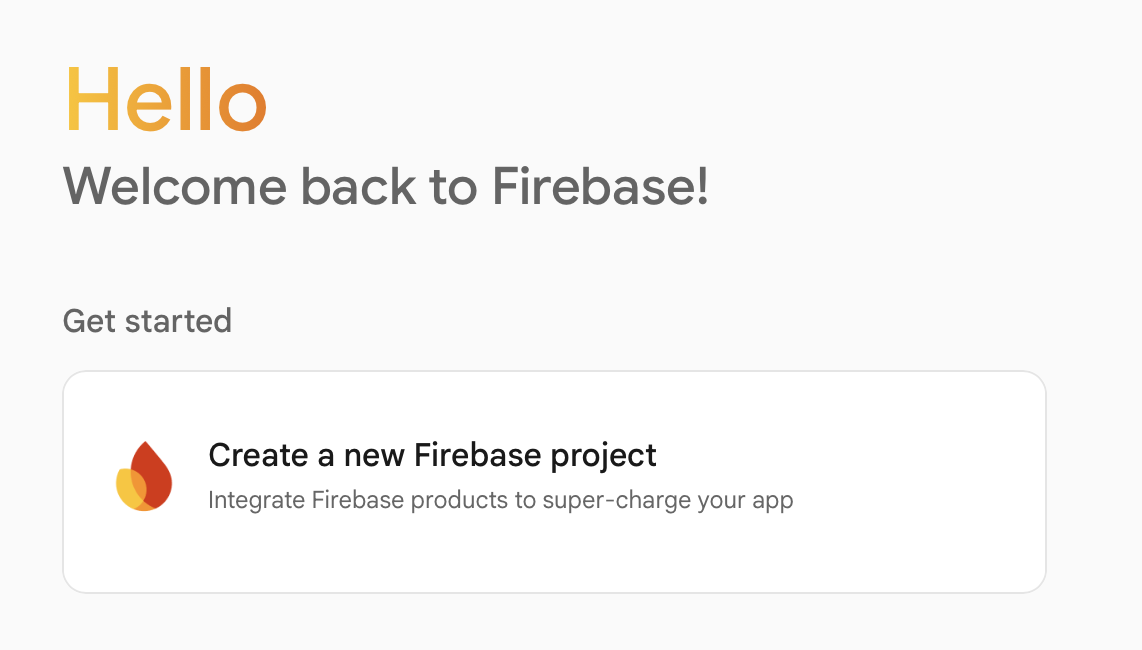
  2. Create a new Google Cloud project or select an existing one. See the Firebase setup guide for detailed instructions. A screenshot showing Firebase project creation
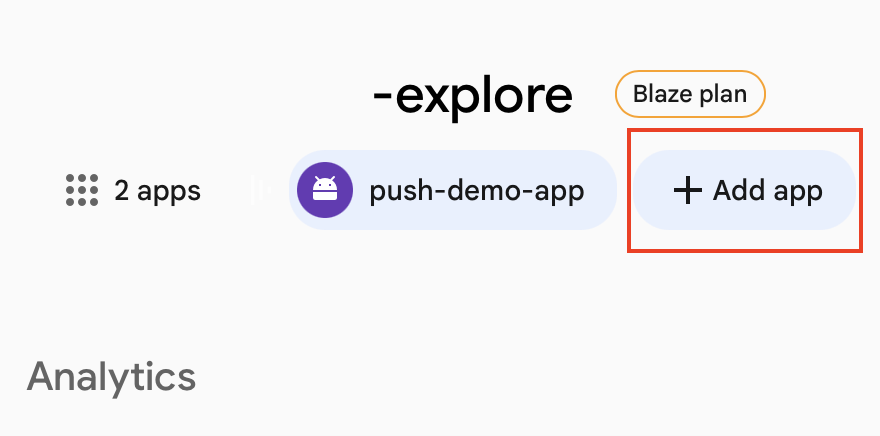
  3. Register a new Firebase application. Check the app registration guide for detailed instruction. A screenshot showing Firebase app creation
Generate service account credentials

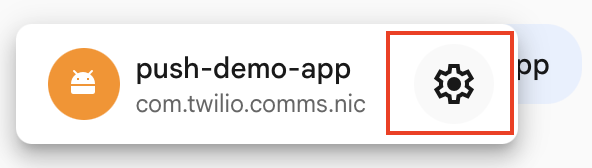
  1. Select your app, then click the gear icon to open Settings. A screenshot showing the app selection
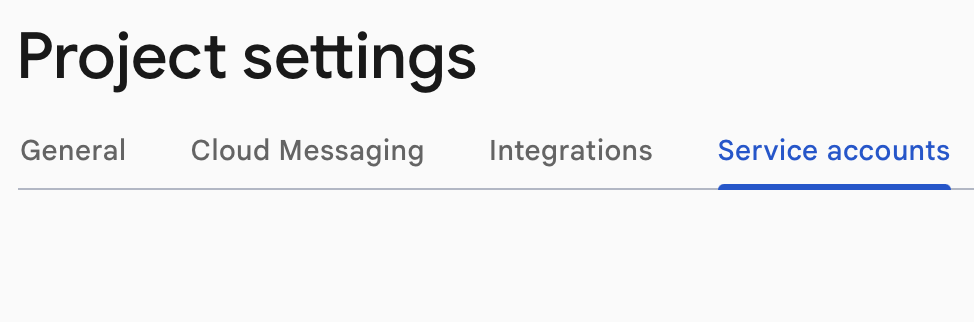
  2. Navigate to the Service Accounts tab and ensure Firebase Admin SDK is selected. A screenshot showing the Service Accounts tab selected
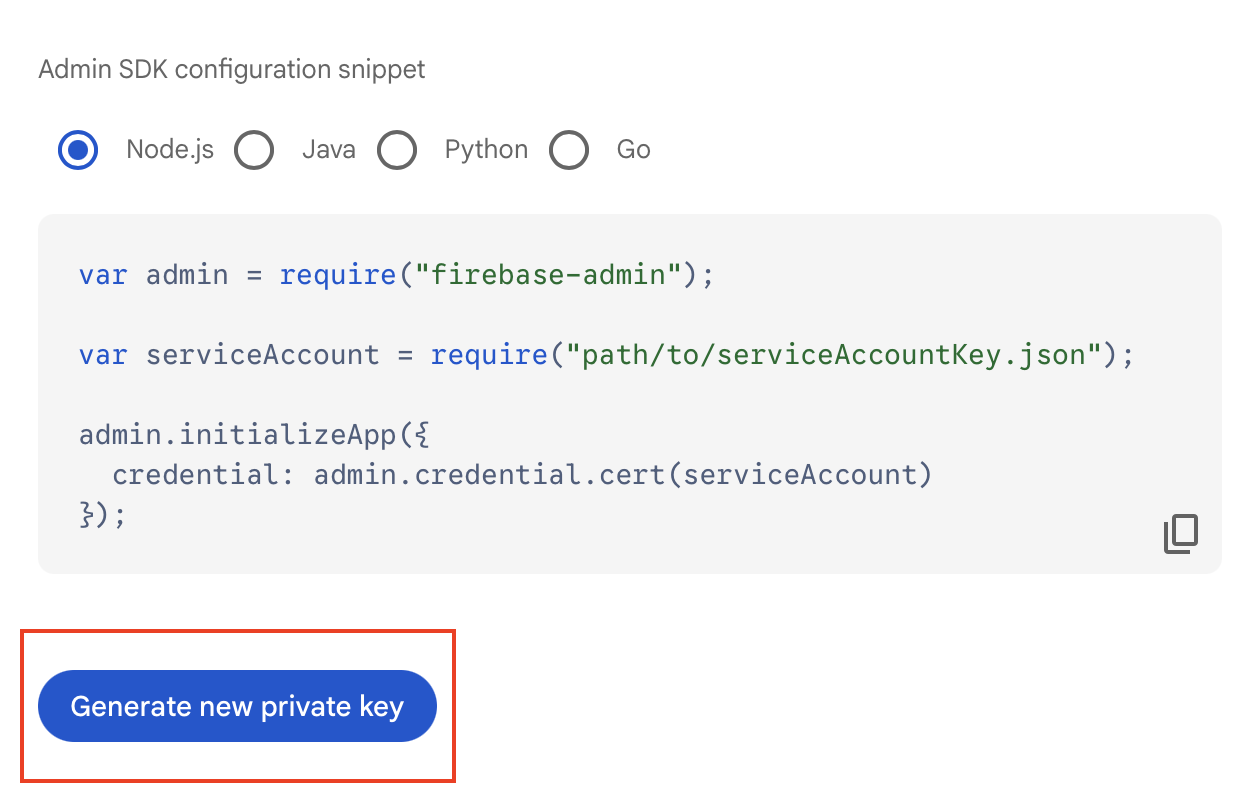
  3. Click Generate new private key. This downloads a JSON file containing your credentials. A screenshot showing the private key generation button
Encode the credentials

The credentials must be base64 encoded before uploading to Twilio. Open a terminal in the directory you saved the file to and run:

$cat your_filename.json | base64 -b 0

Replace your_filename.json with the actual filename of your downloaded credentials file.

Upload credentials to Twilio

Use the base64-encoded string as the privateKey value when creating your FCM credential:

$curl -X POST 'https://comms.twilio.com/preview/PushNotifications/Credentials' \
>--header 'Content-Type: application/json' \
>--data '{
> "credentialType": "FCM",
> "content": {
> "privateKey": "your_base64_encoded_key"
> },
> "appName": "your_app_name"
>}' \
>-u $TWILIO_ACCOUNT_SID:$TWILIO_AUTH_TOKEN

Next steps

  • Learn how to send a push notification.
  • Set up APN credentials to send notifications to Apple devices.