

Obtaining APN Credentials
Overview
To send push notifications to Apple devices and Safari browsers, you need Apple Push Notification service (APN) credentials. This guide walks you through creating an App ID, generating a push notification certificate, and extracting the credentials required by the Twilio Communications API.
Prerequisites
- An Apple Developer account
- Access to the Apple Developer Portal
- macOS with Keychain Access
- OpenSSL installed (included by default on macOS)
Register an App ID
If you already have an App ID configured with push notifications, skip to Create a certificate.
-
Navigate to the Apple Developer Portal.
-
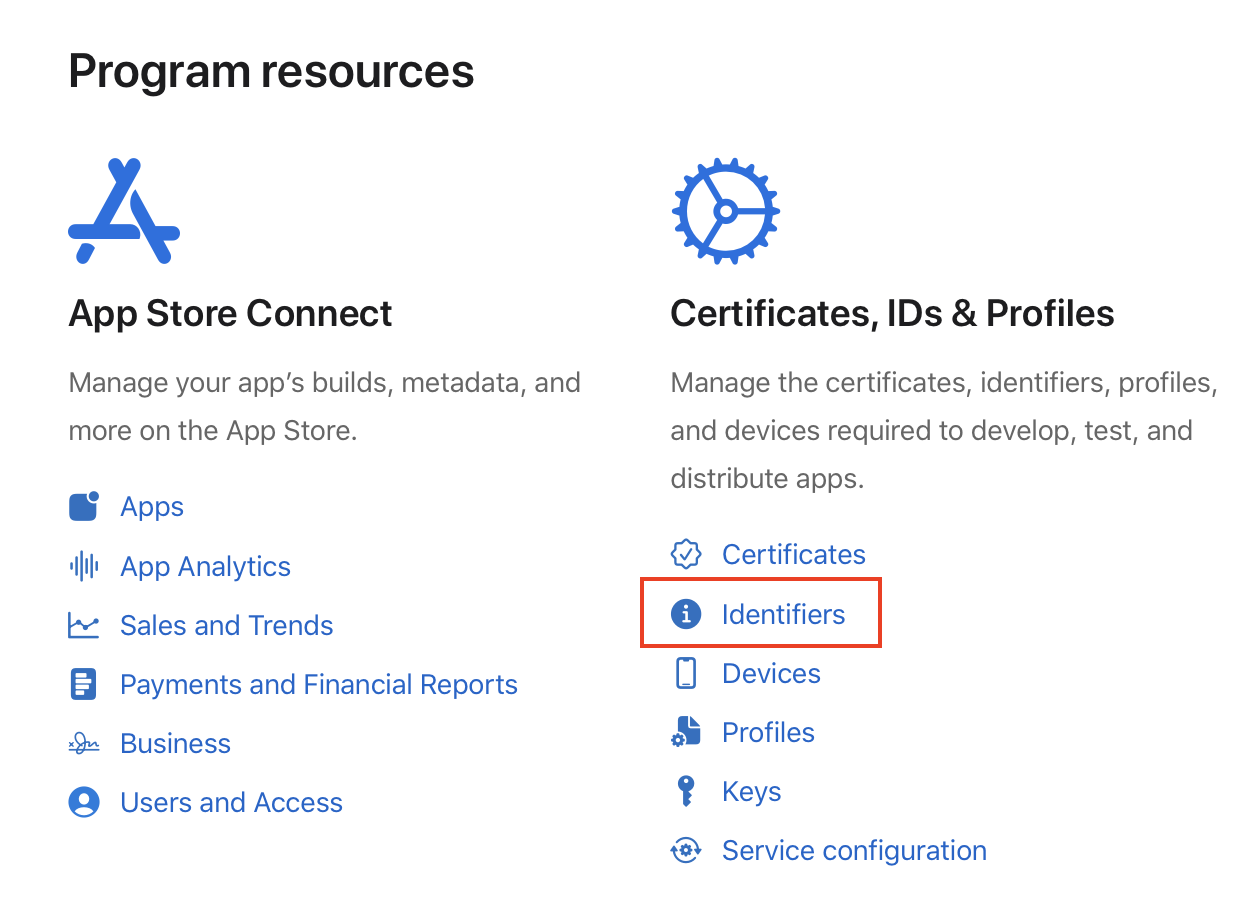
Under Certificates, IDs & Profiles, select Identifiers.
-
Click the + button next to Identifiers.

-
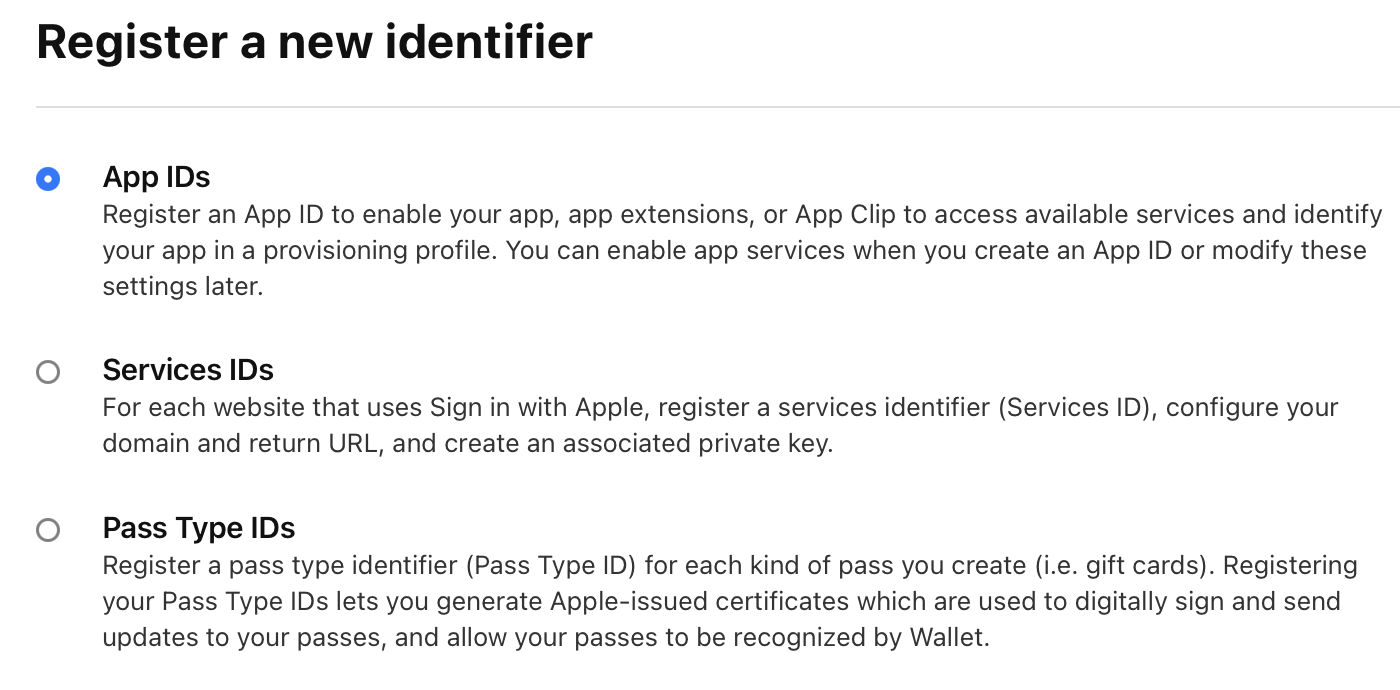
Select App IDs and click Continue.
-
Complete the App ID registration form with your app details.
Create a certificate
-
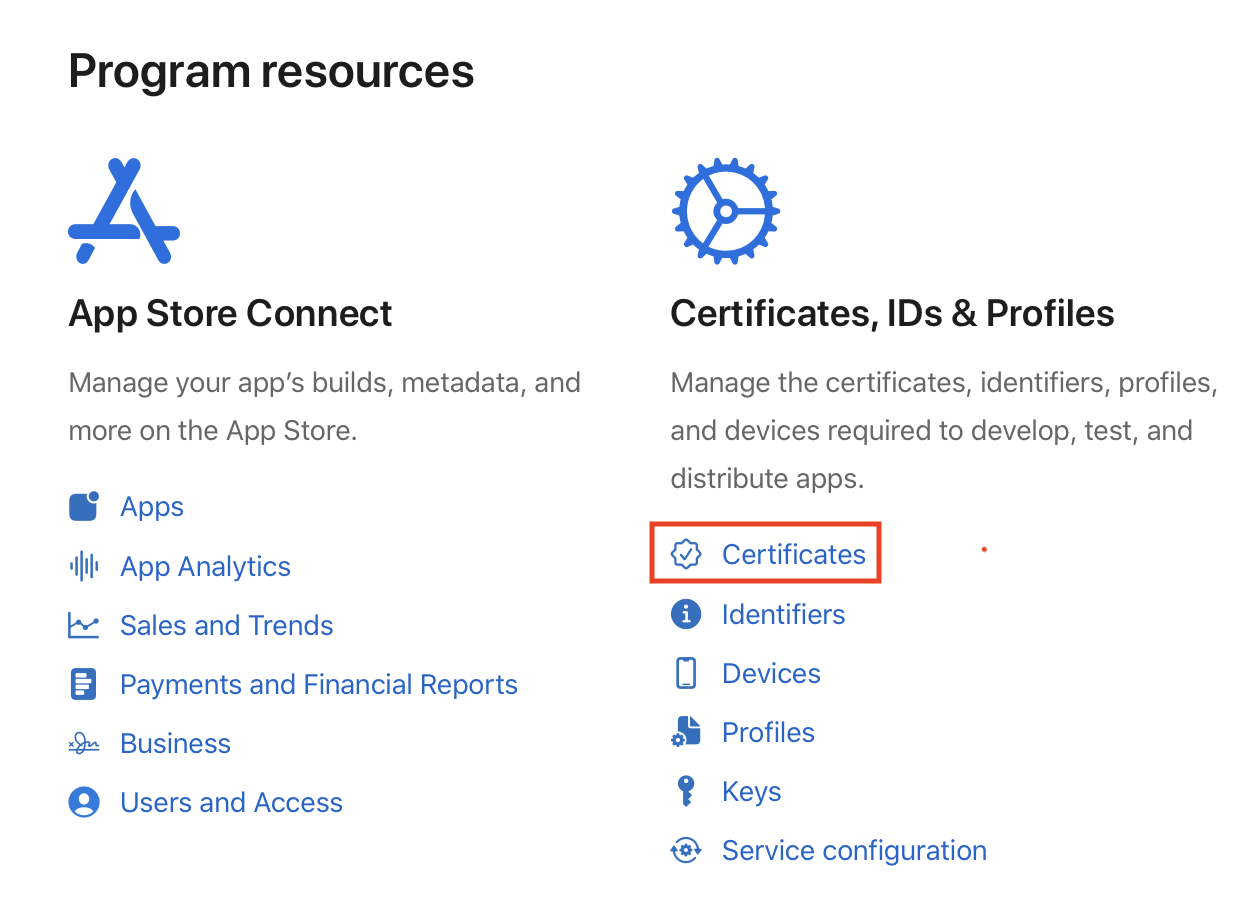
In the Apple Developer Portal, select Certificates under Certificates, IDs & Profiles.
-
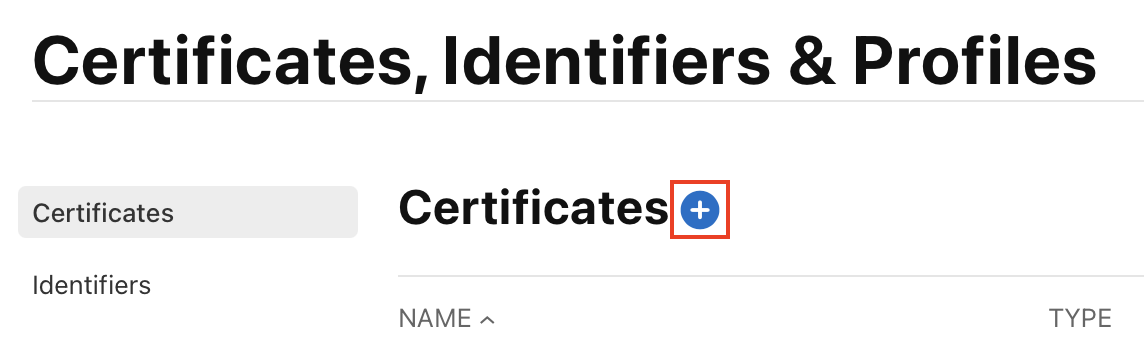
Click the + button next to Certificates.
-
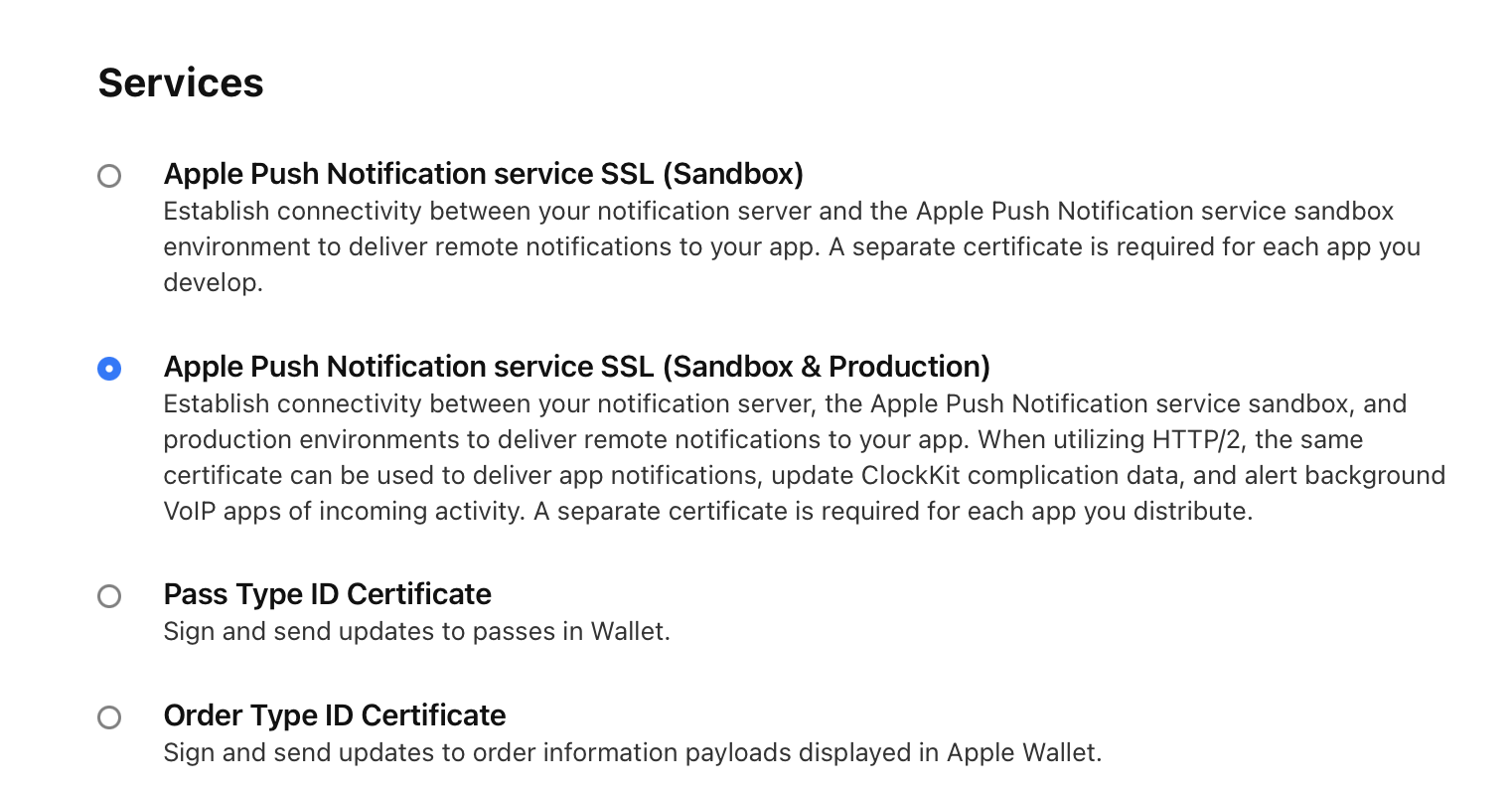
Select Apple Push Notification service SSL (Sandbox & Production) and click Continue.
-
Select your App ID from the dropdown menu.
-
Create a Certificate Signing Request (CSR) by following Apple’s CSR guide.
-
Upload your CSR file.
-
Download the generated certificate.
Export the certificate
-
Double-click the downloaded certificate to install it in Keychain Access.
-
Open Keychain Access and locate the certificate. It will be named
Apple Push Services: [your app id]. Right-click the certificate and select Export. -
Save the file as a
.p12file. This file contains both the certificate and private key.
Encode the credentials
The certificate and private key must be extracted from the .p12 file and base64 encoded before uploading to Twilio.
Extract and encode the certificate
Open a terminal in the directory the .p12 file is saved in and run:
Replace cred.p12 with the actual filename of your exported certificate.
Extract and encode the private key
Replace cred.p12 with the actual filename of your exported certificate.
Upload credentials to Twilio
Use the base64-encoded strings as the certificate and privateKey values when creating your APN credential:
Next steps
- Learn how to send a push notification.
- Set up FCM credentials to send notifications to Android devices.