

Obtaining FCM Credentials
Overview
To send push notifications to Android devices and web browsers, you need Firebase Cloud Messaging (FCM) credentials. This guide walks you through creating a Firebase project and obtaining the service account credentials required by the Twilio Communications API.
Prerequisites
- A Google account
- Access to the Firebase Console
Create a Firebase project
-
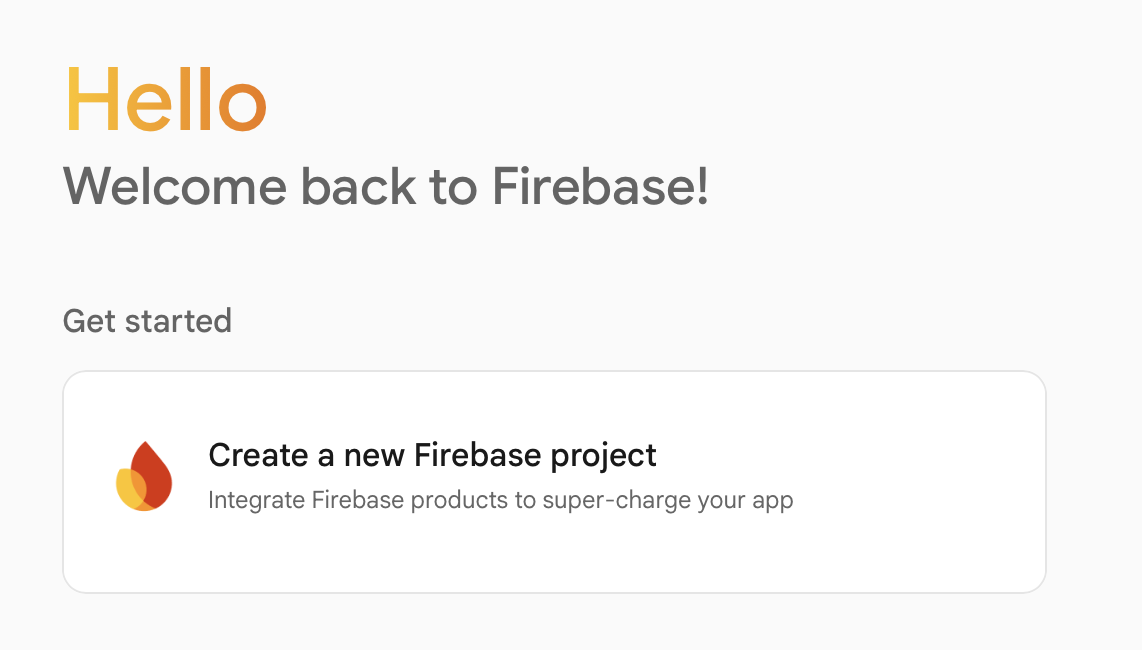
Navigate to the Firebase Console.
-
Create a new Google Cloud project or select an existing one. See the Firebase setup guide for detailed instructions.
-
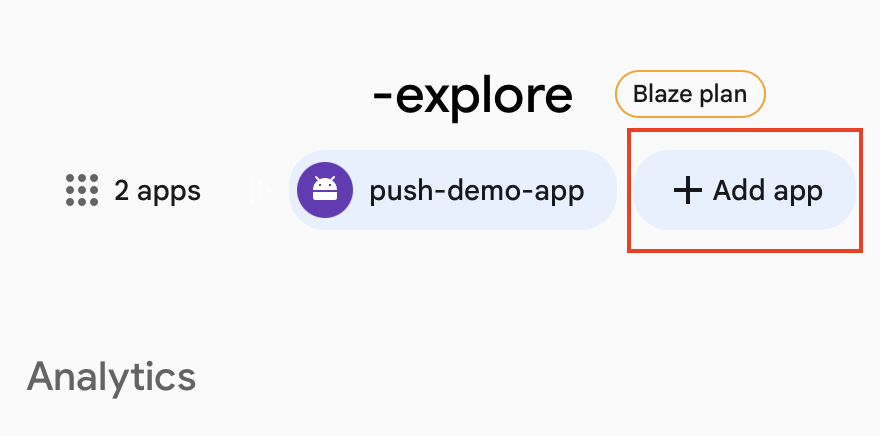
Register a new Firebase application. Check the app registration guide for detailed instruction.
Generate service account credentials
-
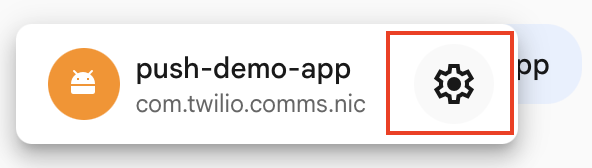
Select your app, then click the gear icon to open Settings.
-
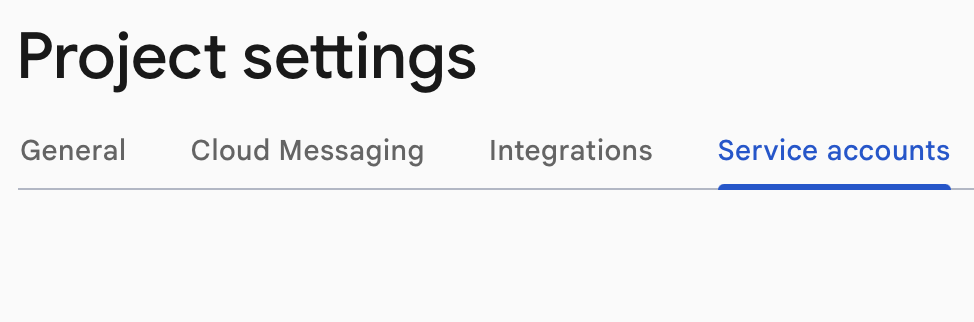
Navigate to the Service Accounts tab and ensure Firebase Admin SDK is selected.
-
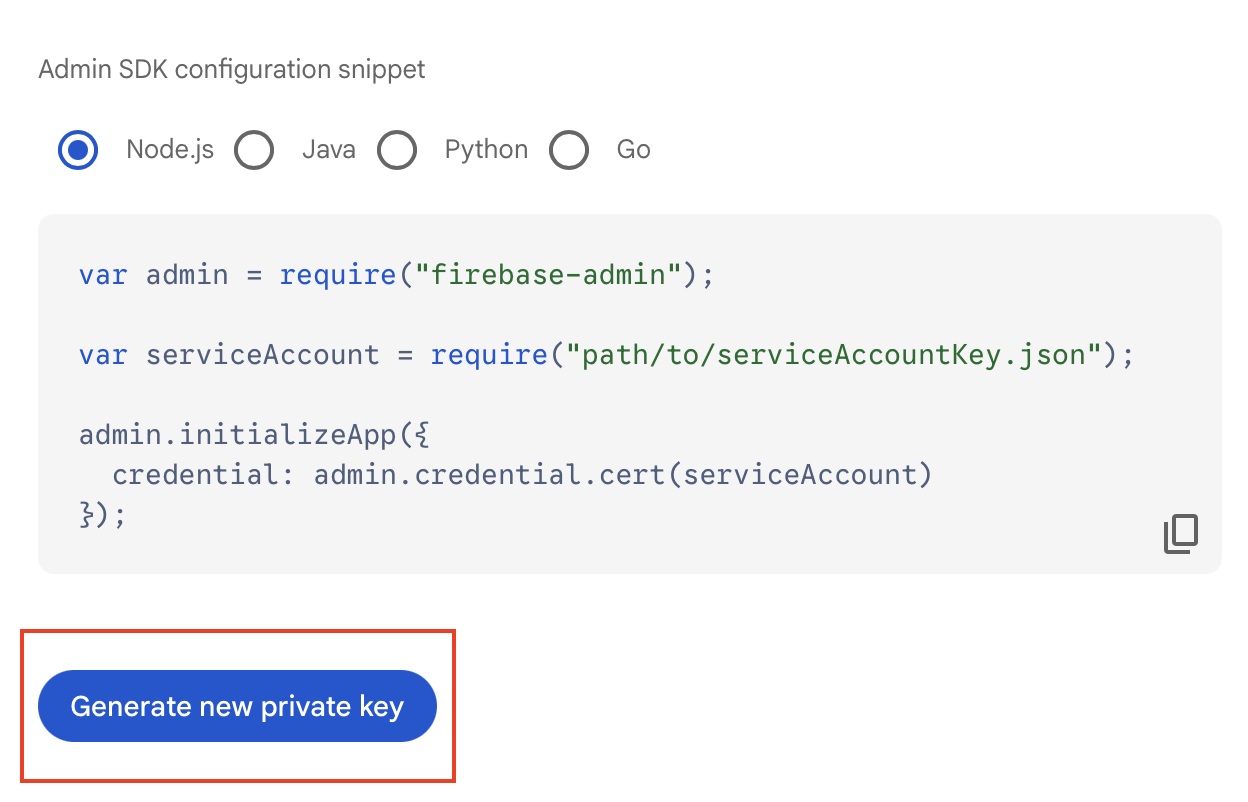
Click Generate new private key. This downloads a JSON file containing your credentials.
Encode the credentials
The credentials must be base64 encoded before uploading to Twilio. Open a terminal in the directory you saved the file to and run:
Replace your_filename.json with the actual filename of your downloaded credentials file.
Upload credentials to Twilio
Use the base64-encoded string as the privateKey value when creating your FCM credential:
Next steps
- Learn how to send a push notification.
- Set up APN credentials to send notifications to Apple devices.